


Admin User Interface
Virtual Types
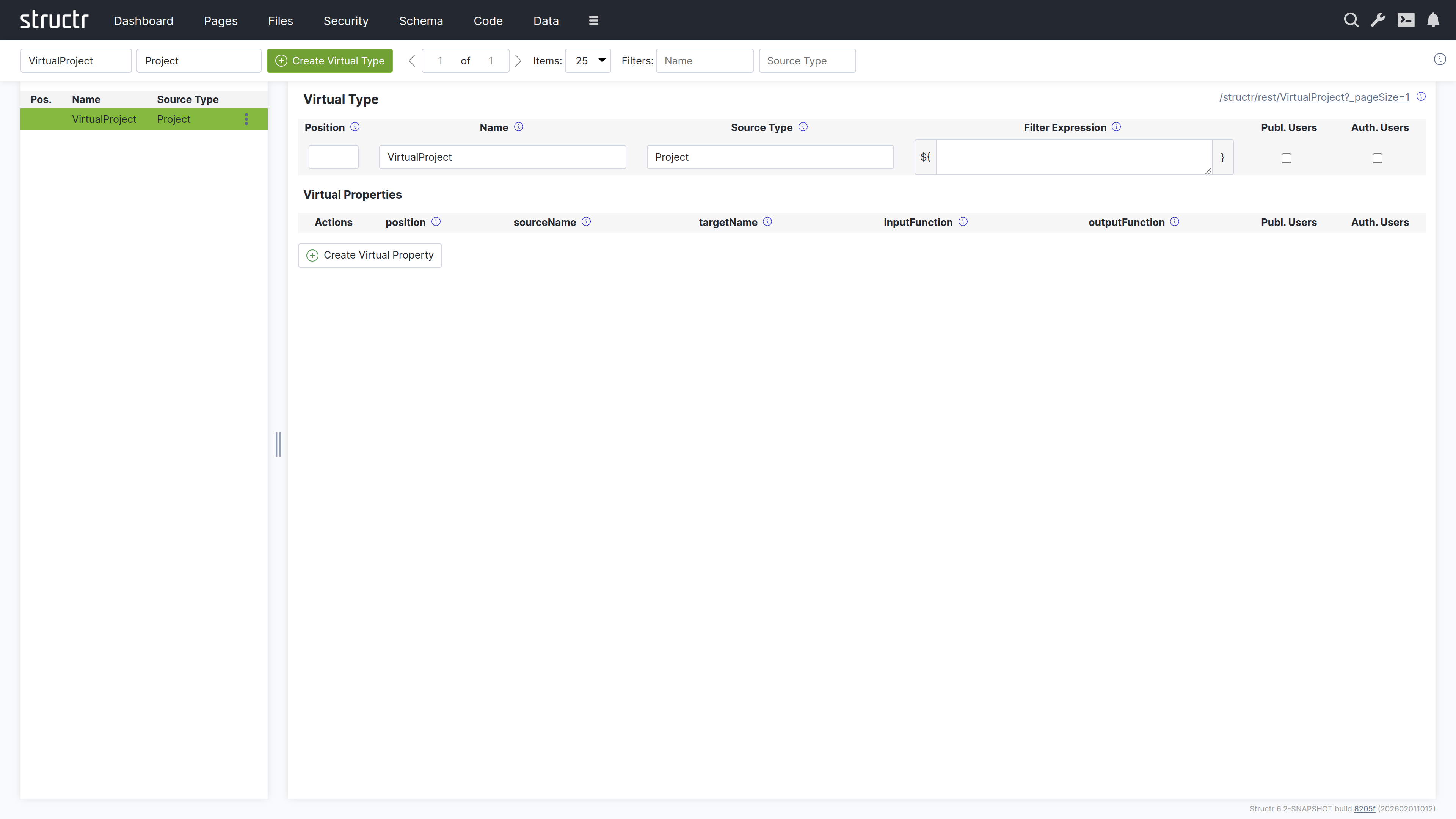
The Virtual Types area is where you create and configure virtual types – dynamic data transformations that expose transformed data via REST endpoints. Virtual types allow you to present your data in different formats without modifying the underlying schema. You can rename properties, filter objects, apply transformations, and create simplified views of complex data structures. This makes them useful for building APIs that present data differently to different consumers, or for transforming data during import and export operations. By default, this area is hidden in the burger menu.
Note: This area appears empty until you create your first virtual type.
Secondary Menu
Create Virtual Type
On the left, two input fields let you enter the Name and Source Type for a new virtual type. Both fields are required. Click the Create button to create it.
Pager
Navigation controls for browsing through large numbers of virtual types.
Filter
Two input fields on the right let you filter the list by Name and Source Type.
Left Sidebar
The sidebar shows a list of all virtual types with the following information:
- Position – The sort order
- Name – The virtual type name
- Source Type – The type that provides the source data
Each entry has a context menu with Edit and Delete options.
Main Area
When you select a virtual type, the main area shows an editor for its configuration. In the top right corner, a link to the REST endpoint for this virtual type is displayed (as an HTML view, same as in the Data area).
Virtual Type Settings
The upper section contains settings for the virtual type itself:
- Position – Controls the sort order in the list
- Name – The name of the virtual type (also determines the REST endpoint URL)
- Source Type – The type that provides the source data
- Filter Expression – An optional script expression that filters which source objects are included
- Visible to Public Users – Checkbox for public visibility
- Visible to Authenticated Users – Checkbox for authenticated user visibility
Virtual Properties Table
Below the settings, a table shows all virtual properties defined for this type. The columns are:
- Actions – Edit and delete buttons
- Position – Sort order of the property
- Source Name – The property name on the source type
- Target Name – The property name in the virtual type output
- Input Function – Optional transformation script for input (used during imports)
- Output Function – Optional transformation script for output
- Public Users – Visibility flag
- Authenticated Users – Visibility flag
Create Virtual Property
A button below the table lets you add new virtual properties.
Related Topics
- Virtual Types – Detailed documentation on data transformation concepts, use cases, and scripting
- Importing Data – Using virtual types for CSV import transformations
- REST Interface – How virtual types create REST endpoints